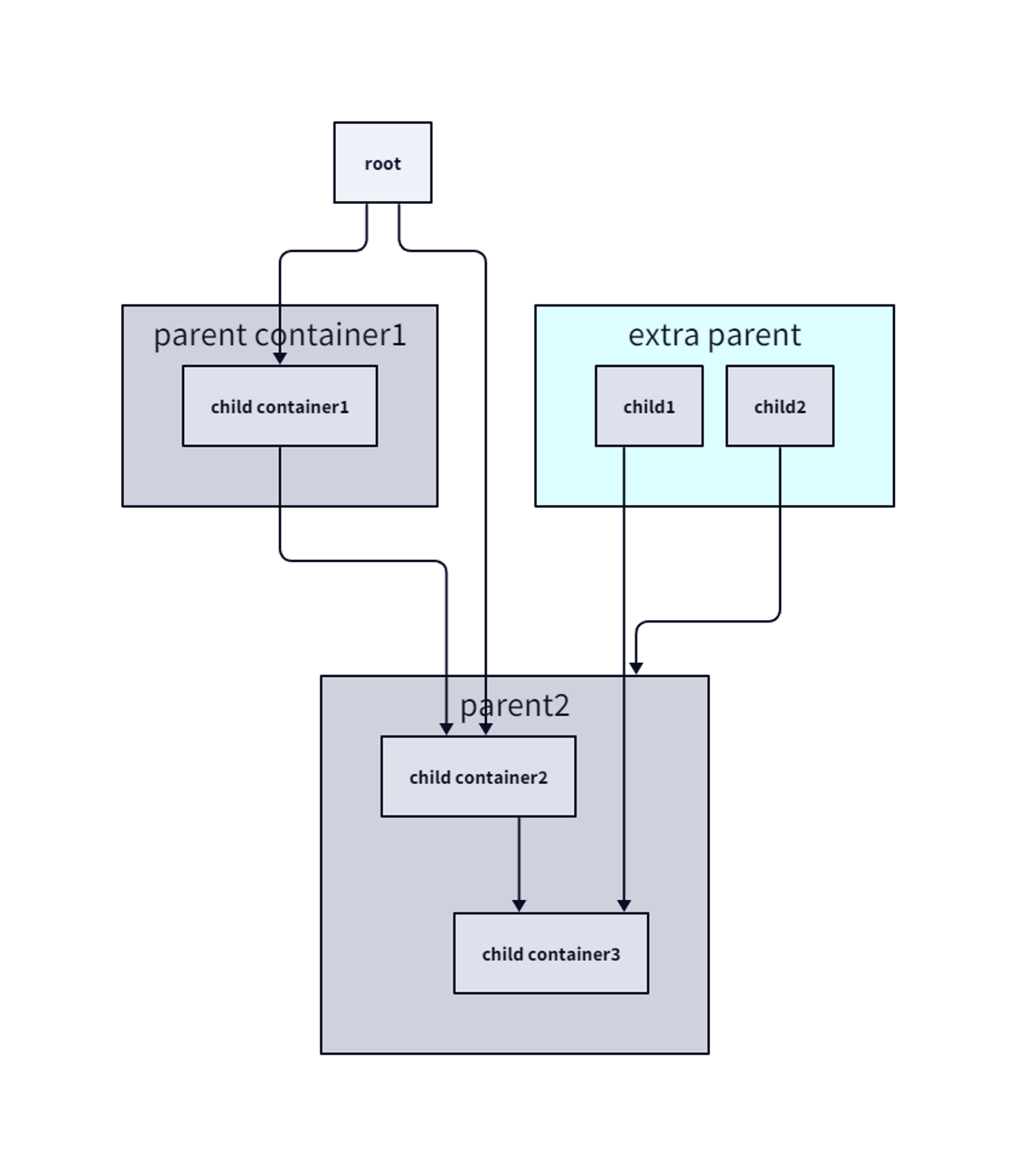
여기서 말하는 그룹은 ”{}"로 감싸진 영역입니다. 또한 여기서 사용할 alice와 bob은 먼저 명시해야 합니다.
shape: sequence_diagram
alice
bob
shower thoughts: {
alice -> bob: A physicist is an atom's way of knowing about atoms.
alice -> bob: Today is the first day of the rest of your life.
}
life advice: {
bob -> alice: If all else fails, lower your standards.
}
아래는 결과입니다.
결과를 보시면 이전에 설명드렸던 자식 컨테이너와 같이 나왔는데요.
이를 그룹이라고 합니다.
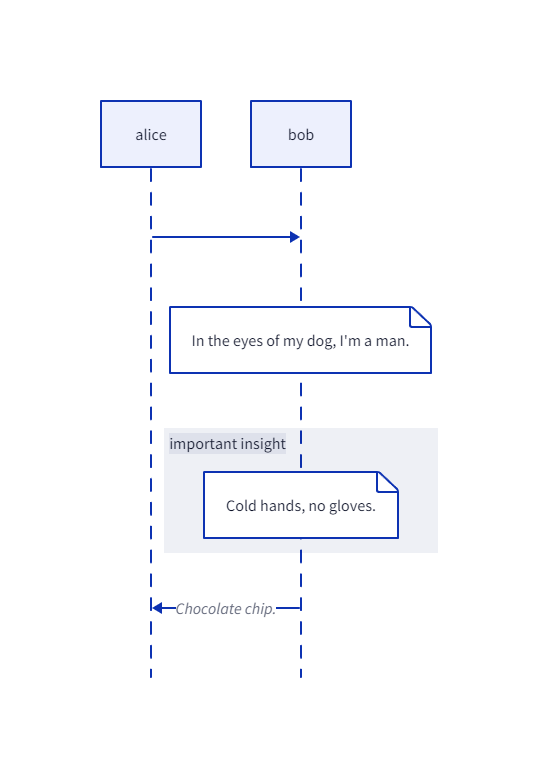
다음은 Note에 대해 볼 것입니다.
노트는 연결이 없는 중첩된 개체를 정의해서 만들어 줍니다.
“.”를 통해 생성
shape: sequence_diagram
alice -> bob
bob."In the eyes of my dog, I'm a man."
important insight: {
bob."Cold hands, no gloves."
}
bob -> alice: Chocolate chip.
아래는 결과 입니다.
다음과 같이 접은 종이 같은 모양이 나오고 이를 그룹 안에 넣을 수도 있습니다.
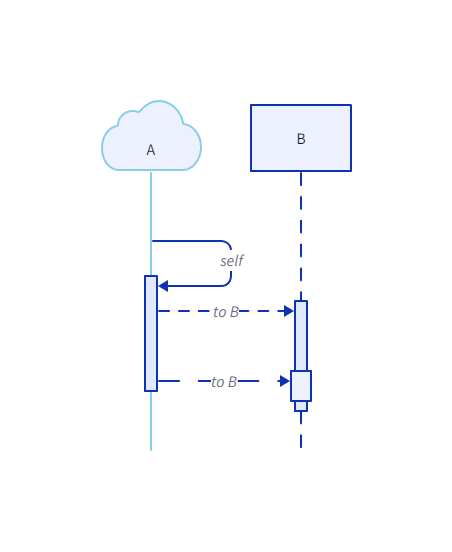
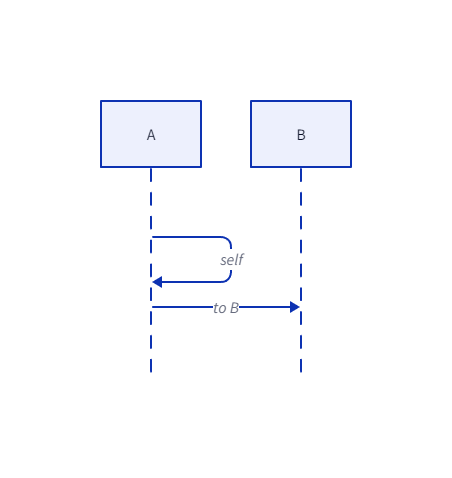
자기 자신을 가르켰을 때의 출력입니다.
shape: sequence_diagram
A -> A: self
A -> B: to B
다음과 같이 나오는 것을 확인할 수 있습니다.
색을 변경하고 모양 또한 변경할 수 있습니다.
shape: sequence_diagram
A -> A.A1: self
A.A1 -> B.size 5: to B {
style.stroke-dash: 5
}
A.A1 -> B.size 5.size 10: to B {
style.stroke-dash: 10
}
A.shape: cloud
A.style: {
stroke: skyblue
stroke-dash: 0
}
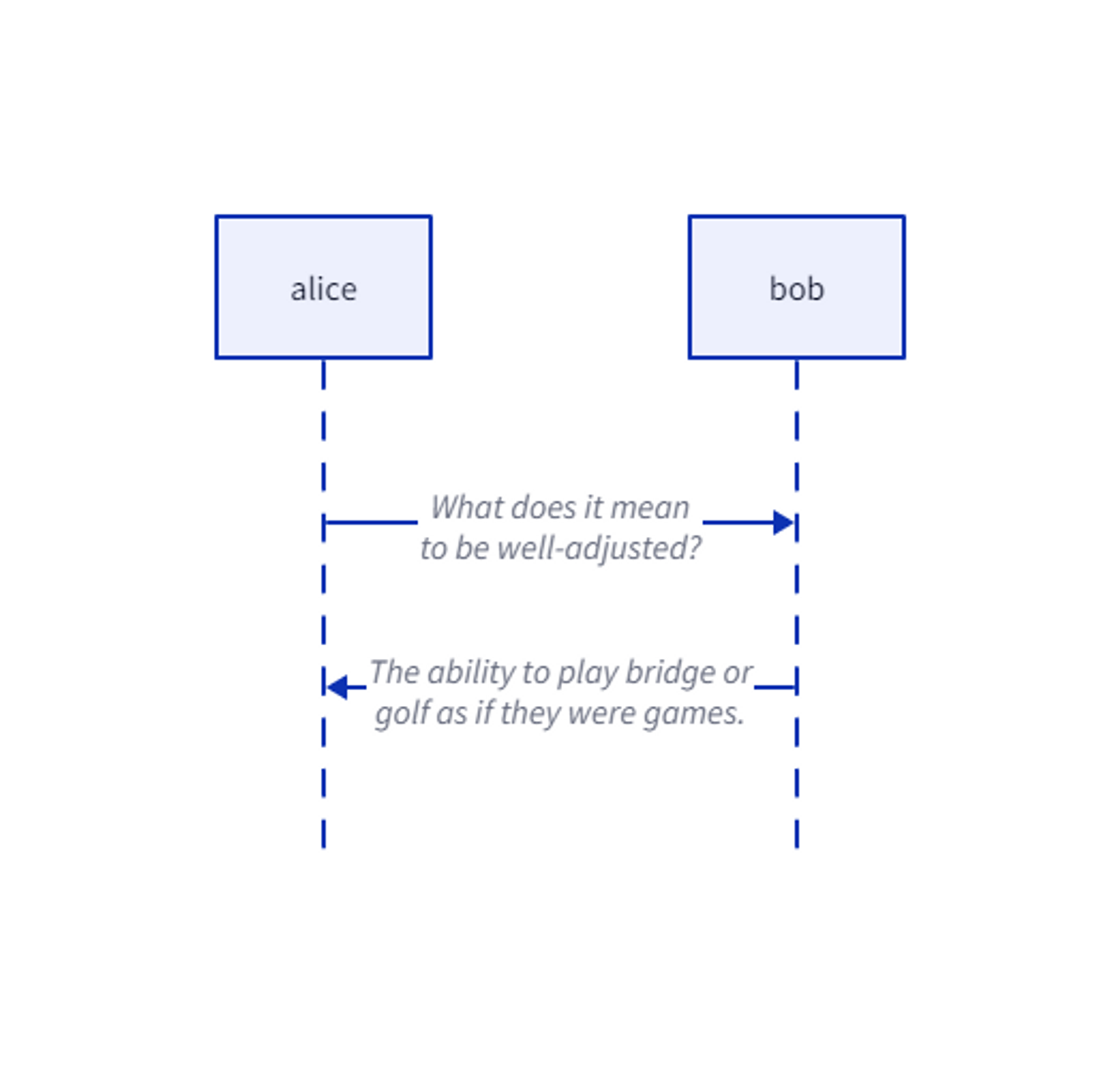
shape: sequence_diagram
alice -> bob: What does it mean\\nto be well-adjusted?
bob -> alice: The ability to play bridge or\\ngolf as if they were games.
아래와 같이 출력됩니다.
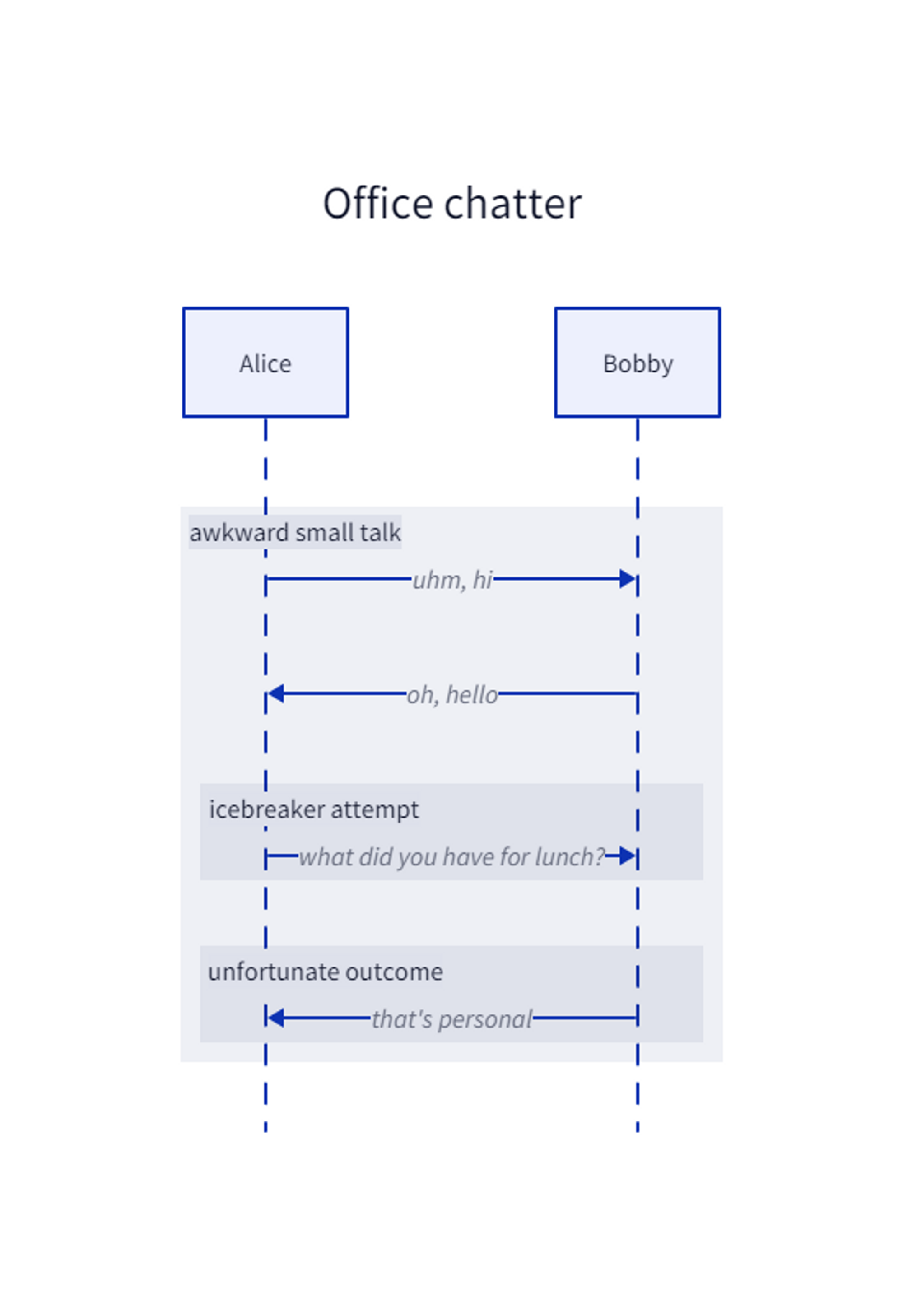
시퀀스 다이어그램의 자식은 전체에서 동일한 범위를 가집니다. (중첩되지 않고 사용됩니다.)
Office chatter: {
shape: sequence_diagram
alice: Alice
bob: Bobby
awkward small talk: {
alice -> bob: uhm, hi
bob -> alice: oh, hello
icebreaker attempt: {
alice -> bob: what did you have for lunch?
}
unfortunate outcome: {
bob -> alice: that's personal
}
}
}
아래의 결과와 같이 자식은 부모를 참조한 영역을 가지게 됩니다.
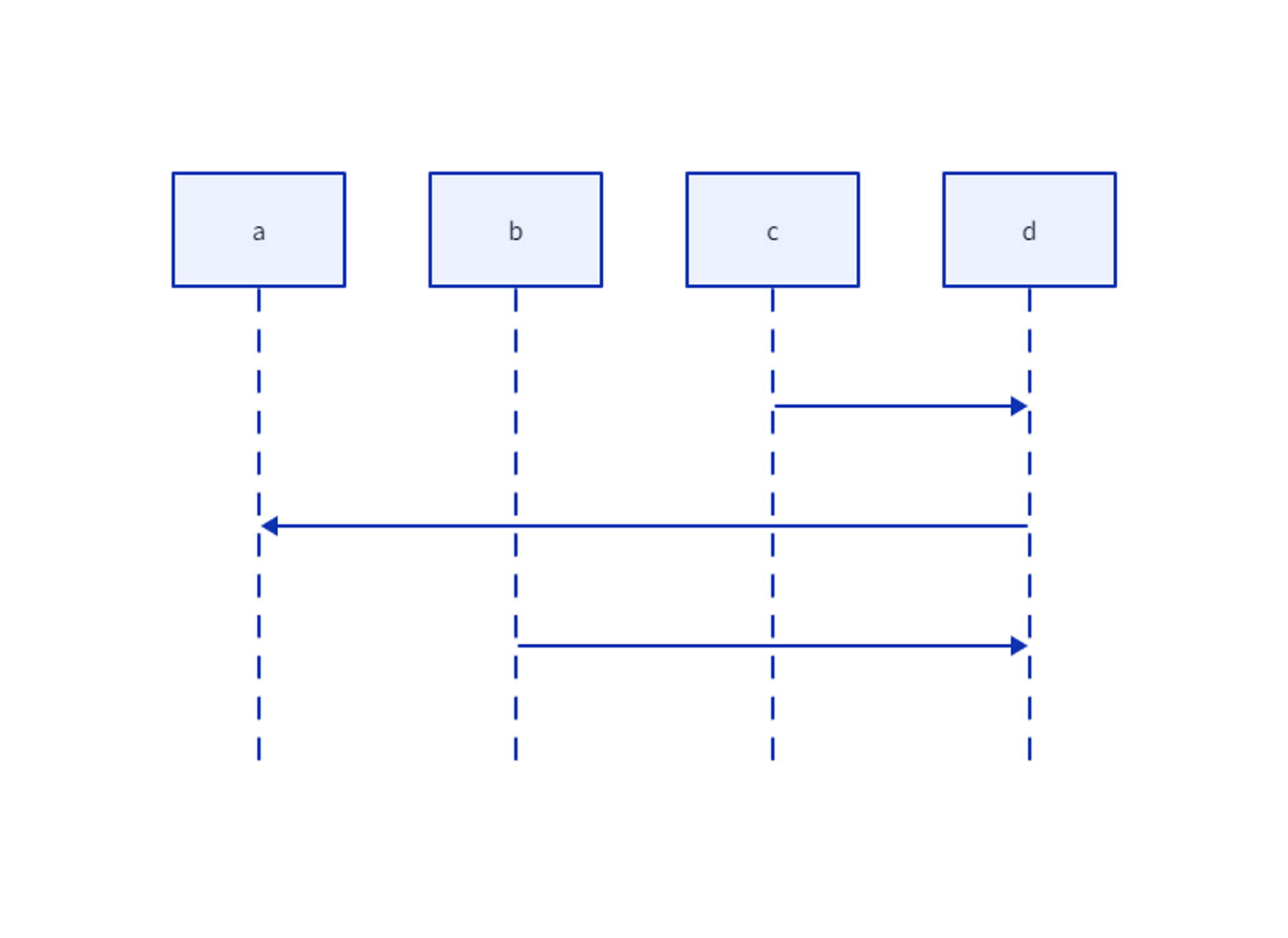
선언 순서에 따라 좌측에서 우측으로 배치됩니다.
연결 순서에 따라 시퀀스가 정해집니다.
shape: sequence_diagram
a
b
c
d
c -> d
d -> a
b -> d
아래와 같이 생성됨을 확인할 수 있습니다.
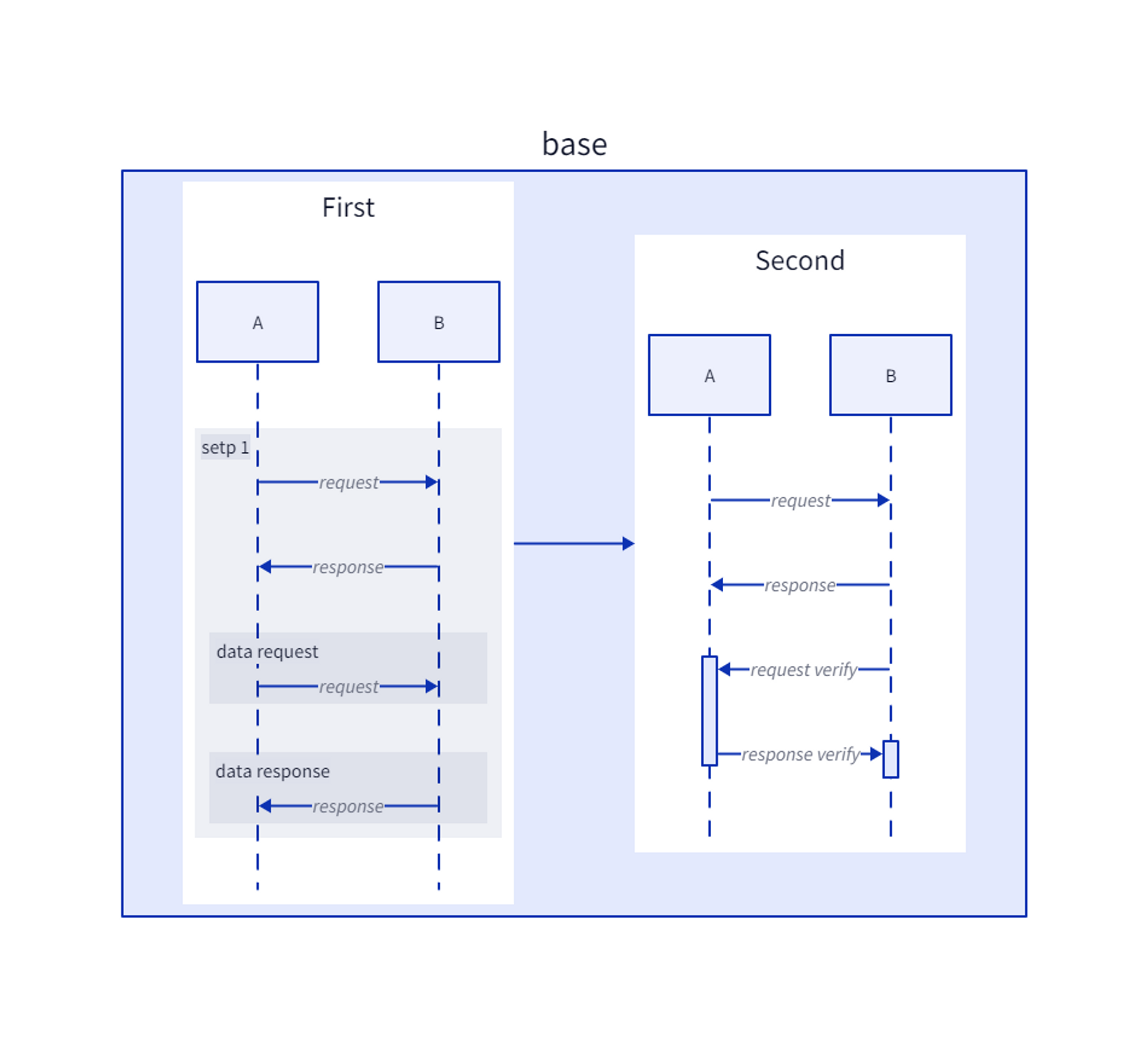
다음 예제는 연결 및 라벨 재정의 등 여타 다른 컨테이너와 같이 다른 속성을 사용하는 예입니다.
direction: right
base: {
first: First {
shape: sequence_diagram
a: A
b: B
setp 1: {
a -> b: request
b -> a: response
data request: {
a -> b: request
}
data response: {
b -> a: response
}
}
}
second: Second {
shape: sequence_diagram
a: A
b: B
a -> b: request
b -> a: response
b -> a.verify: request verify
a.verify -> b.verify: response verify
}
first -> second
}
아래와 같이 부모가 있고 그 안에서 시퀀스에서 시퀀스로 연결하는 것을 확인할 수 있습니다.
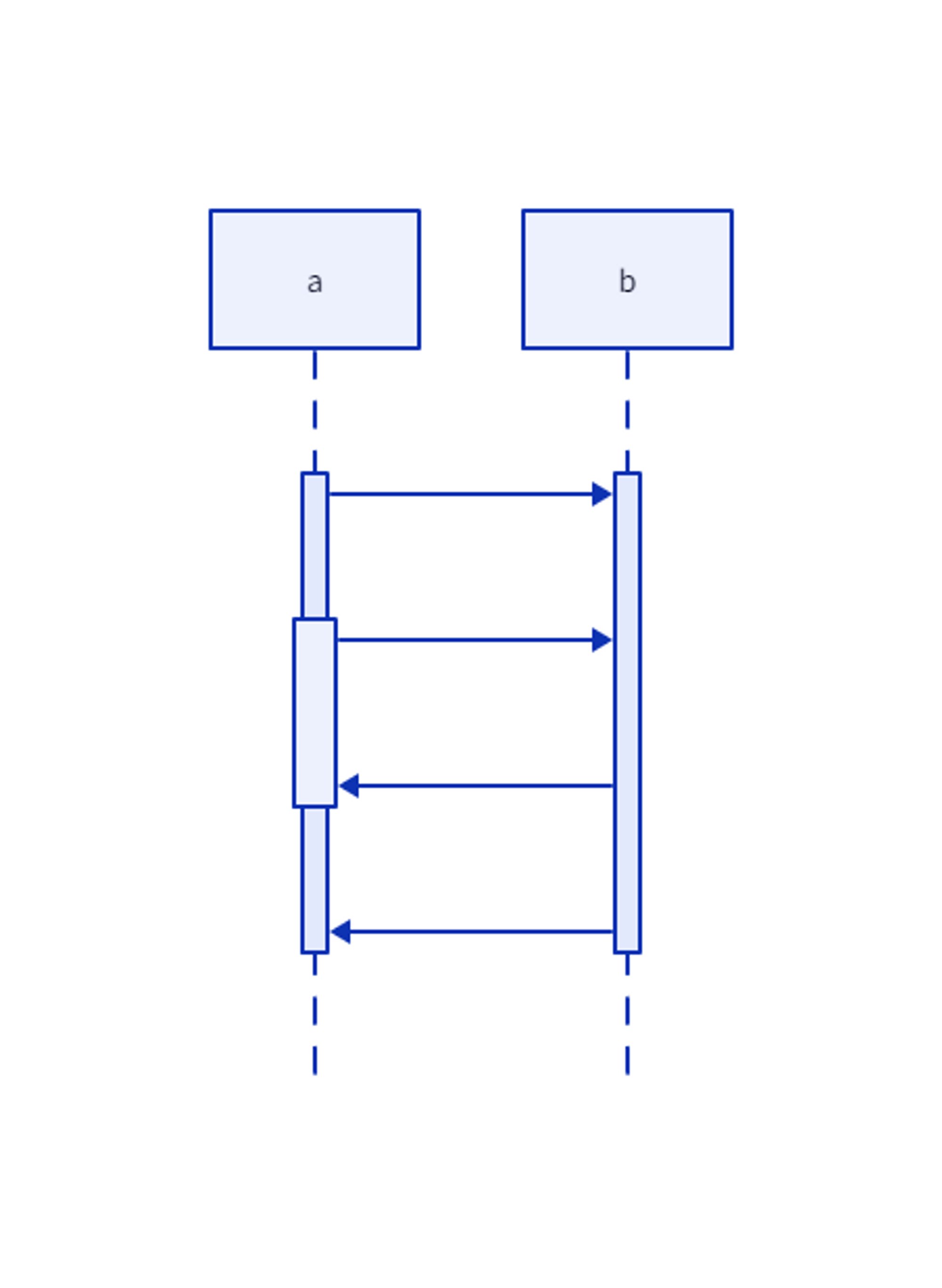
위의 결과에서 a.verify, b.verify 부분이 막대기가 있는 것을 확인할 수 있습니다.
이 영역은 span이라고 하며 시퀀스 다이어그램 내에서 상호 작용의 시작과 끝을 의미합니다.
D2에서 그 막대기의 범위는 다른 곳에서 "수명", "활성화 상자" 및 "활성화 막대"라고도 합니다.
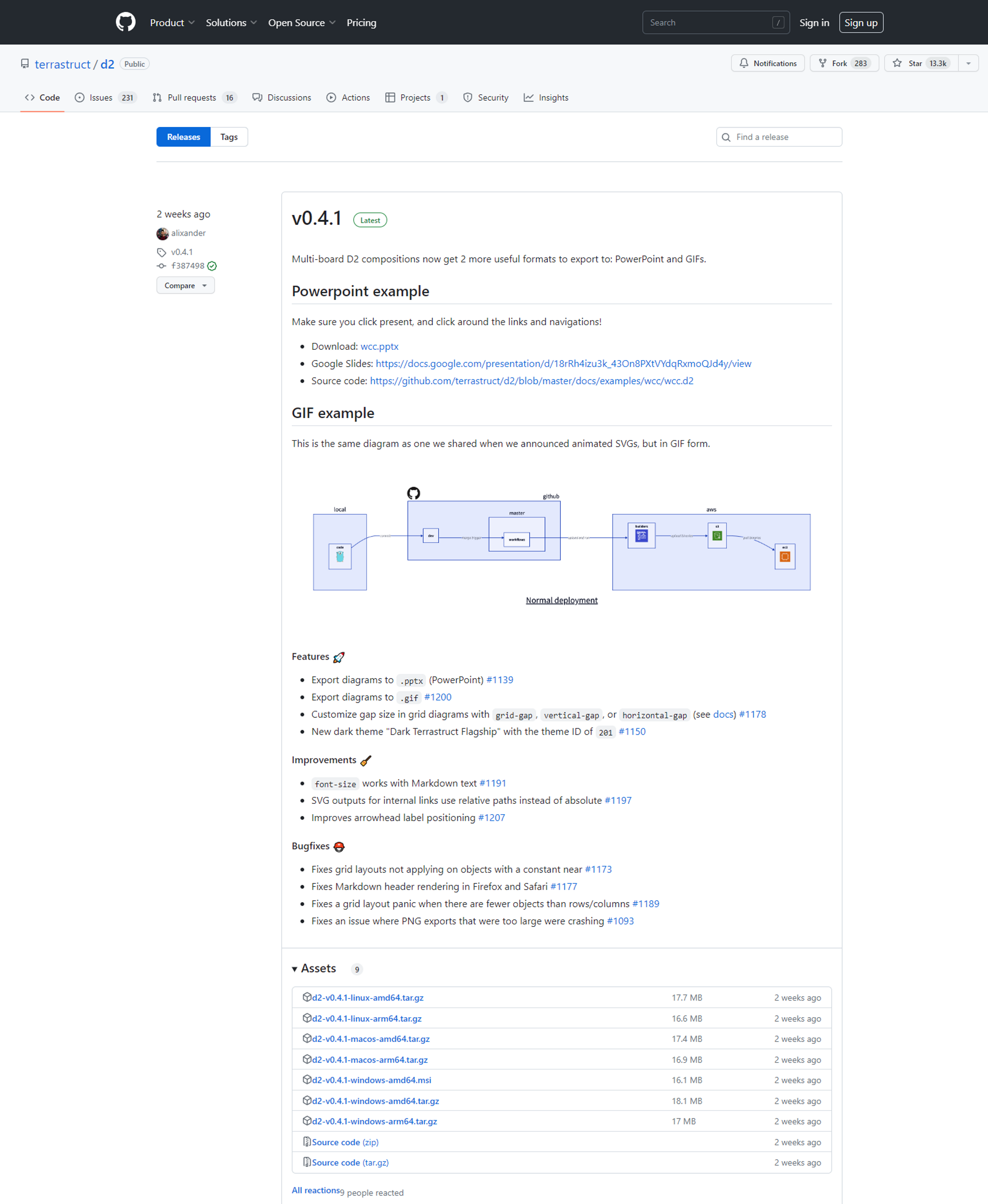
아래와 같이 나오는데 Assetes window msi파일을 다운 받으시고 설치하시면 됩니다.
설치를 위한 깃헙 사이트
확인 누르시고 설치를 완료하시면 d2 명령어를 사용할 수 있으며 ”d2 --version”를 사용하여 제대로 설치가 되었는지 확인해 봅니다.
cmd창에서 d2 --version을 입력해보시면 아래와 같이 출력됩니다.
D:\>d2 --version
v0.4.1
저의 경우 설치한 버전인 0.4.1이 정상적으로 설치 되었음을 확인할 수 있습니다.
아래와 같이 d2lang이라는 파일을 만들고 x -> y라는 내용의 test.d2를 만들어 줍니다.
그리고 d2 -w test.d2 result.svg를 통해 내보내주는데 -w옵션으로 만들어지는 과정을 출력하고 result.svg를 내보내줍니다.
D:\>mkdir d2lang
D:\>cd d2lang
D:\d2lang>echo x -^> y > test.d2
D:\d2lang>d2 -w test.d2 result.svg
[32msuccess[0m: listening on http://127.0.0.1:9515
[34minfo[0m: compiling test.d2...
[32msuccess[0m: successfully compiled test.d2 to result.svg in 384.7745ms
[34minfo[0m: broadcasting update to 0 clients
[32msuccess[0m: GET / 200 392B 0s
[32msuccess[0m: GET /static/watch.js 200 2,374B 63.9696ms
[32msuccess[0m: GET /static/watch.css 200 206B 62.6163ms
[32msuccess[0m: GET /watch 101 0B 0s
[32msuccess[0m: GET /favicon.ico 200 392B 0s
D:\d2lang>d2 test.d2 result1.svg
[32msuccess[0m: successfully compiled test.d2 to result1.svg in 377.1504ms
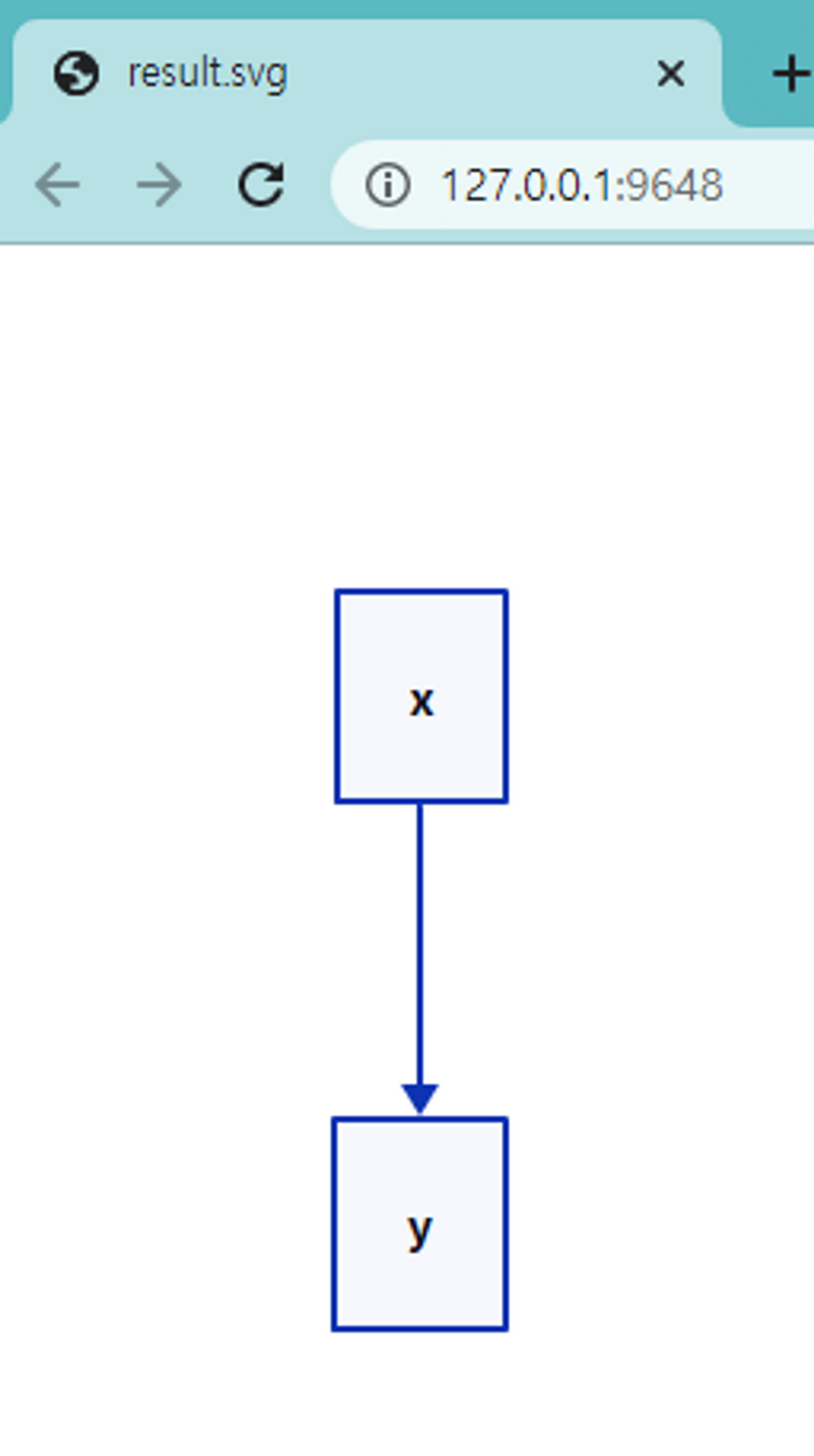
-w를 사용한 경우 아래와 같이 결과를 브라우저에 띄워주면 파일을 생성해줍니다.
사용하지 않은 경우에는 파일만 생성해줍니다.
svg 결과 1
이번엔 png로 내보내겠습니다.
그냥 내보내려는 경우 아래와 같이 에러가 뜨는데
D:\d2lang>d2 -w test.d2 result.png
[0m[0m2023-05-01 11:29:00.638 [34m[INFO][0m [35m(default.stdlib)[0m [36m<./..\..\github.com\playwright-community\playwright-go\run.go:107> (*PlaywrightDriver).DownloadDriver[0m "Downloading driver to C:\\Users\\UserName\\AppData\\Local\\ms-playwright-go\\1.20.0-beta-1647057403000"
[31merr[0m: failed to install Playwright: could not install driver: could not install driver: could not download driver: Get "https://playwright.azureedge.net/builds/driver/next/playwright-1.20.0-beta-1647057403000-win32_x64.zip": read tcp 192.168.0.2:9754->13.107.238.49:443: wsarecv: An existing connection was forcibly closed by the remote host.
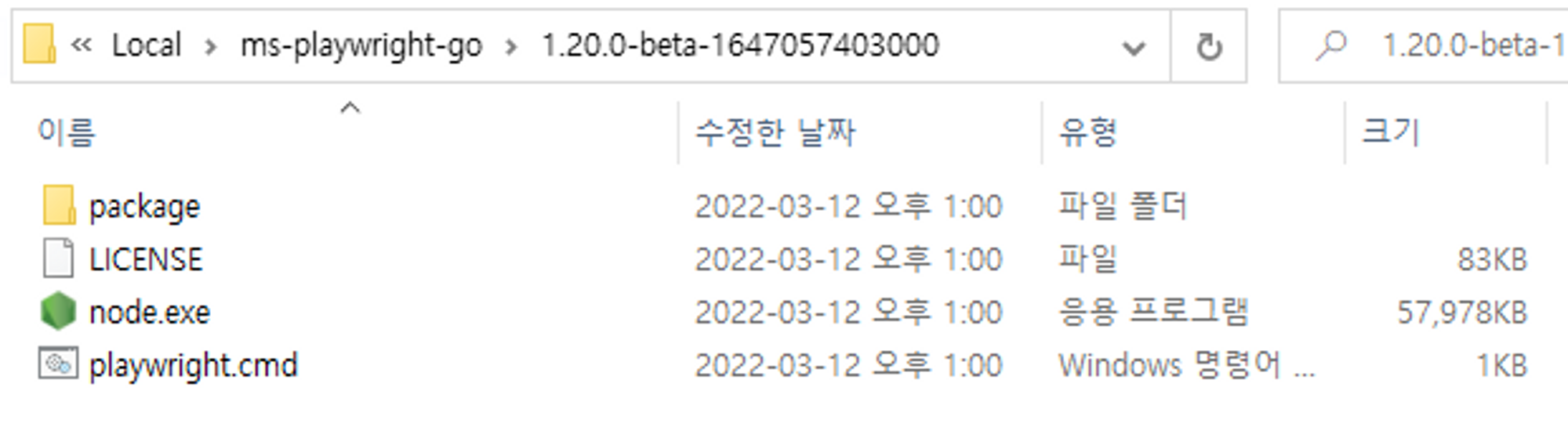
위의 내용에 있는 링크에서 압축 파일을 직접 다운하여 C:\\Users\\UserName\\AppData\\Local\\ms-playwright-go\\1.20.0-beta-1647057403000"에 압축 파일의 내용을 그대로 넣어주면 해결됩니다.
버전이 다른 경우 경로와 링크가 다를 수 있습니다. 본인의 링크를 확인하여 넣어주세요.
Get의 "~"에 있는 링크입니다.
could not download driver: Get "https://playwright.azureedge.net/builds/driver/next/playwright-1.20.0-beta-1647057403000-win32_x64.zip": read tcp 192.168.0.2:9754->13.107.238.49:443: wsarecv: An existing connection was forcibly closed by the remote host.
아래와 같이 압축 파일의 내용을 그대로 넣으면 됩니다.
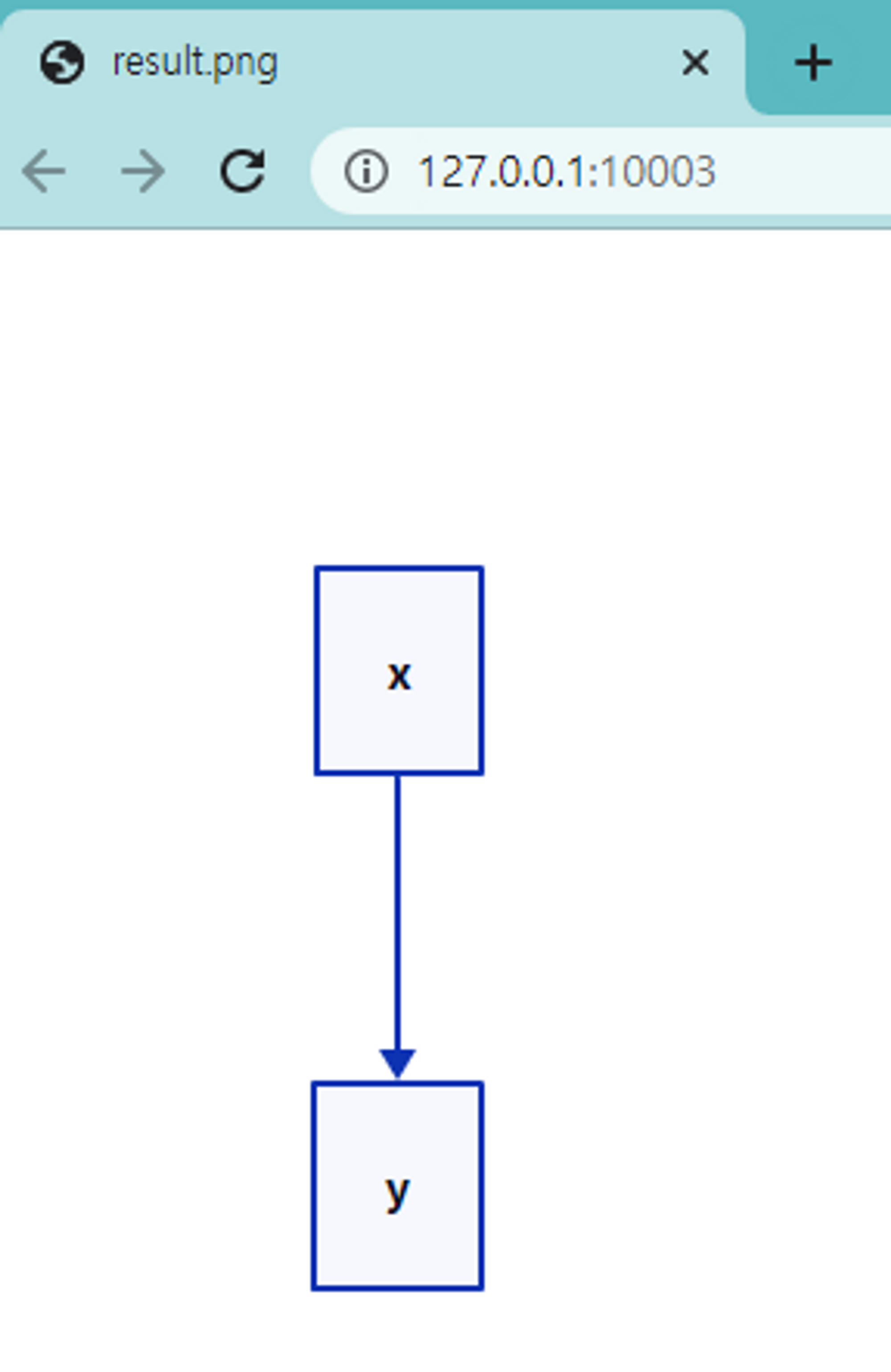
그러면 다음과 같이 정상적으로 내보내집니다.
D:\d2lang>d2 -w test.d2 result.png
success: listening on http://127.0.0.1:10003
info: compiling test.d2...
success: successfully compiled test.d2 to result.png in 411.8471ms
info: broadcasting update to 0 clients
success: GET / 200 392B 0s
success: GET /static/watch.js 200 2,374B 64.9473ms
success: GET /static/watch.css 200 206B 64.3403ms
success: GET /watch 101 0B 0s
success: GET /favicon.ico 200 392B 357.2µs
explanation: |md
# up mark
context
|
explanation2: |md
# can use markdown
context
|
explanation -> explanation2
plankton -> formula: will steal
formula: {
equation: |latex
\\lim_{h \\rightarrow 0 } \\frac{f(x+h)-f(x)}{h}
|
}
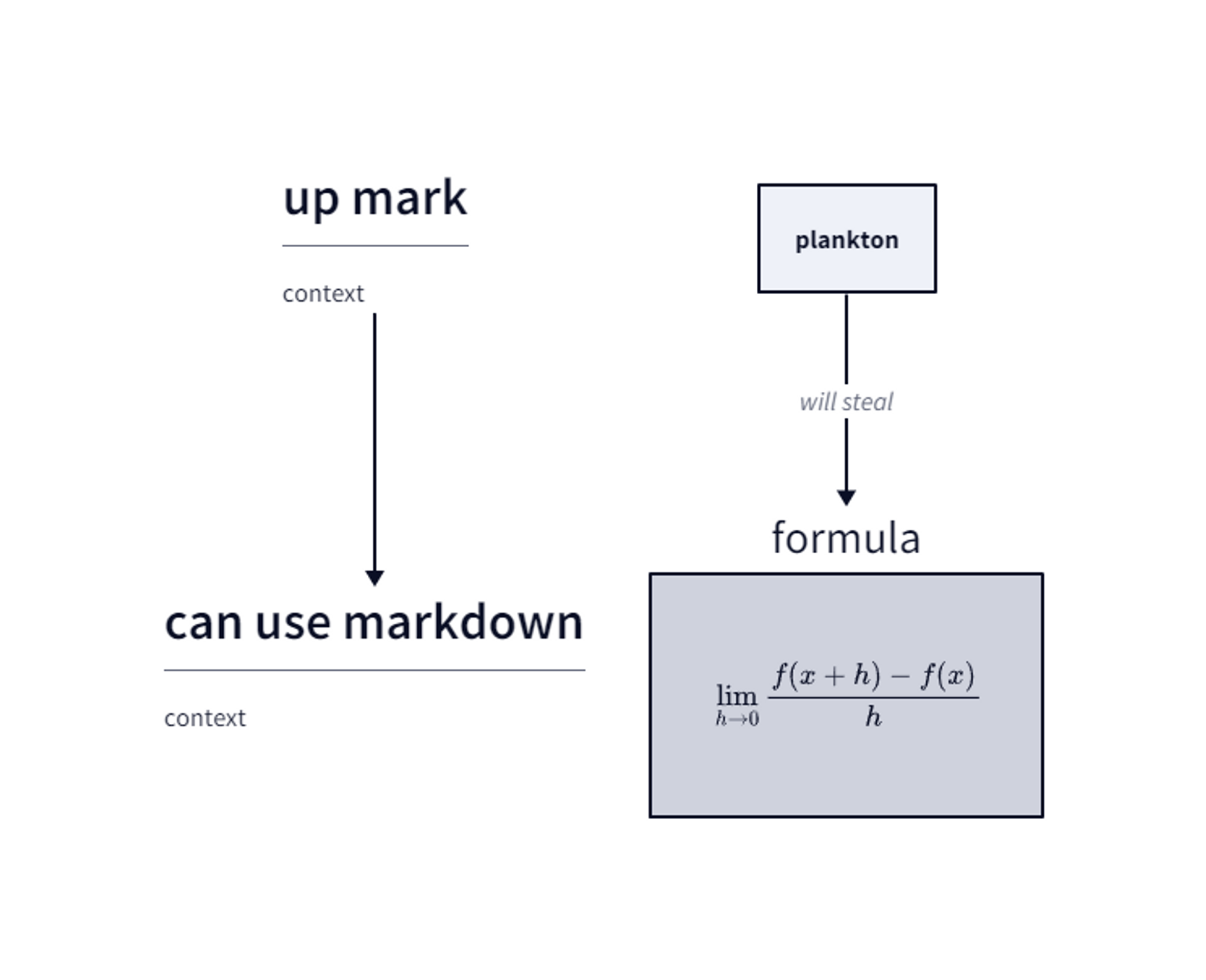
아래의 사진은 결과입니다.
upmark와 can use markdown은 마크다운 문법을 사용했으며 옆의 plankton과 formula는 LaTex(MathJax)를 통해 수식을 나타낸 것입니다.
|사용할 속성
|
으로 container뒤에 적어 주시면 아래와 같이 출력 되게 만들 수 있습니다.
markdown과 LaTex는 따로 설명 드리지 않겠습니다만 “\”의 경우 escape문자다 보니 “\\”로 사용해야 합니다.
예) 기존 MathJex 문법 \alpha → D2Lang에서 사용하는 경우 \\alpha
또한 아직 줄바꿈이 추가되지 않았지만 추후 displaylines를 통해 개선한다 합니다.
결과 1
코드와 텍스트를 출력하는 방법에 대해 살펴보겠습니다.
grid-rows: 3
title: it is just text {
shape: text
style: {
font-size: 55
italic: true
bold: true
underline: true
}
}
code: |c
printf("%d", 10);
|
my_code1: ||ts
declare function getSmallPet(): Fish | Bird;
||
my_code2: |||ts
declare function getSmallPet(): Fish | Bird;
const works = (a > 1) || (b < 2)
|||
my_code3: |`ts
declare function getSmallPet(): Fish | Bird;
const works = (a > 1) || (b < 2)
`|
일반 shape: text속성으로 일반 텍스트로 만들 수 있고 그 안에 속성으로 세부적인 텍스트를 정할 수 있습니다.
코드의 경우에는 | 뒤에 언어 이름을 적어서 사용하면 됩니다.
언어의 문법에 따라 |이 사용되기 때문에 텍스트를 출력하는 여러 방법이 지원되고 있습니다.
||~||을 두개 붙여 사용하는 방법 |||~|||이나 |`~`|을 사용하는 방법이 있습니다.
출력은 아래와 같습니다.
결과 2
다음으로는 지원하는 LaTex 예제를 보고 마치겠습니다.
amscd plugin: {
ex: |tex
\\begin{CD} B @>{\\text{very long label}}>> C S^{{\\mathcal{W}}_\\Lambda}\\otimes T @>j>> T\\\\ @VVV V \\end{CD}
|
}
braket plugin: {
ex: |tex
\\bra{a}\\ket{b}
|
}
cancel plugin: {
ex: |tex
\\cancel{Culture + 5}
|
}
color plugin: {
ex: |tex
\\textcolor{red}{y} = \\textcolor{green}{\\sin} x
|
}
gensymb plugin: {
ex: |tex
\\lambda = 10.6\\,\\micro\\mathrm{m}
|
}
mhchem plugin: {
ex: |tex
\\ce{SO4^2- + Ba^2+ -> BaSO4 v}
|
}
physics plugin: {
ex: |tex
\\var{F[g(x)]}
\\dd(\\cos\\theta)
|
}
multilines: {
ex: |tex
\\displaylines{x = a + b \\\\ y = b + c}
\\sum_{k=1}^{n} h_{k} \\int_{0}^{1} \\bigl(\\partial_{k} f(x_{k-1}+t h_{k} e_{k}) -\\partial_{k} f(a)\\bigr) \\,dt
|
}
# Just to separate into two rows
amscd plugin -> braket plugin: {style.opacity: 0}
cancel plugin -> color plugin: {style.opacity: 0}
gensymb plugin -> mhchem plugin: {style.opacity: 0}
physics plugin -> multilines: {style.opacity: 0}